There’s an Update button in your WordPress dashboard, and you probably have two fears about it. Click it and the site might break. Leave it and the site might get hacked. The second fear moves quickly: Patchstack’s report on 2025 puts the median time to mass attack at 5 hours for the security holes attackers go after hardest.
Introduction
You can’t wait out that risk, so the useful question is how to update without gambling your Tuesday on it. Our answer is a short routine you can repeat every week or two. Budget half an hour the first time.
Keep one distinction in mind as you read. WordPress is good at noticing when an update crashes your site. It can’t tell when an update quietly stops your enquiry form from sending, and catching that is your job, which is why testing gets its own step below.
We checked the screens in these steps on WordPress 7.1.4, on a throwaway demo install, on 4 November 2026.
What it actually means: the routine, step by step
1. See what’s waiting and read before you click
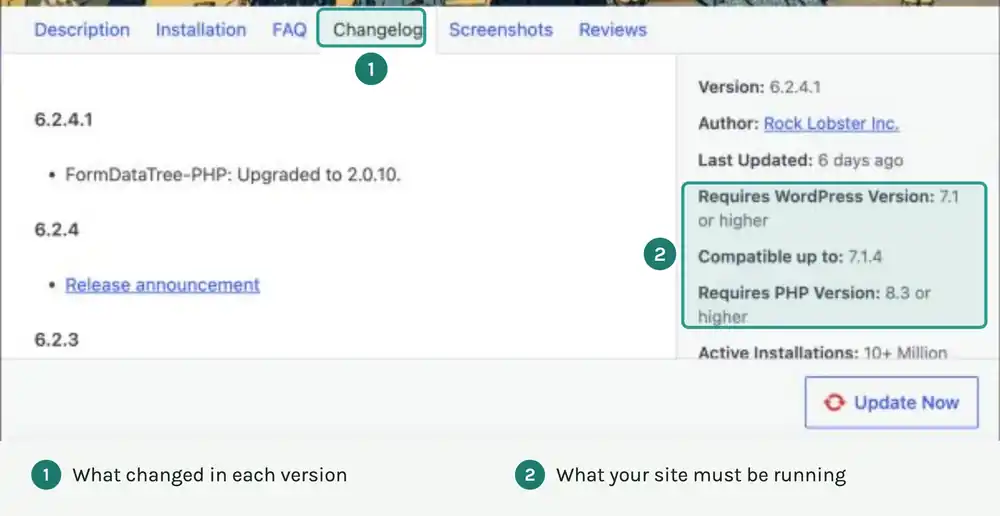
Go to Plugins, then Installed Plugins, and click the Update Available filter at the top of the list. Under each plugin there’s a “View version details” link. Click it, then open the Changelog tab.
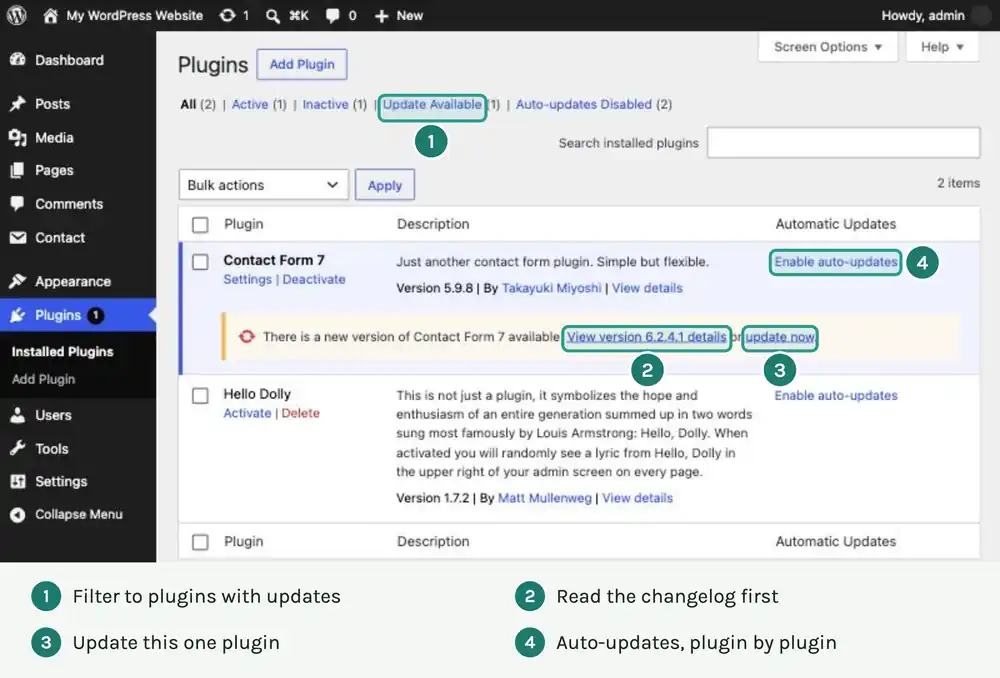
You’re looking for two things. Does the changelog mention a security fix? That plugin goes first, today. And does the side panel list requirements your site doesn’t meet? When we looked on 4 November 2026, Contact Form 7’s latest version asked for WordPress 7.1 and PHP 8.3 or higher. A site on an older PHP version needs that sorted out first, usually with a setting at your host.
2. Take a fresh backup
WordPress’s own guide is blunt: “Always make sure you have a current backup of your site before updating your plugins.” Current means today, and it means files plus database. Our post on what a backup should hold and how to test a restore covers the detail.
3. Choose where to do it
If a plugin touches money, try it on a staging site first. Staging is a private copy of your site, and some hosts will create one with a click. WooCommerce’s documentation says it plainly: “Do not test updates directly on your production site.” Production just means the real, live one.
For a brochure site with no shop, we think a backup and a quiet hour are enough for routine updates. Your analytics will show when your quiet hour is. Friday evening before a long weekend is a bad choice, whatever the numbers say.
4. Update one plugin at a time
WordPress lets you tick everything and bulk update, and for two or three tiny plugins that’s fine. For anything else, use the “update now” link on one plugin, then look at the site before moving on. If you update twelve at once and the checkout dies, you have twelve suspects. Update one and you have one.
Go in this order: security fixes, then small plugins, then the big ones your site leans on (page builder, shop, payments), each in its own slot. Shop owners should also watch for a database update notice after WooCommerce updates, and WooCommerce says to have a backup in place before clicking it.
5. Test what earns you money
Open the site in a private browser window, so you’re seeing what a visitor sees and not your logged-in view. Clear your cache first if you run a caching plugin. Then, in about five minutes:
- load the homepage and your busiest service page on a phone
- send your own contact form, and check that the email arrives
- put something in the basket and run a test order, if you sell online
- try whatever the plugin you just updated actually does
6. Write it down
Keep a line in a spreadsheet: date, plugin, old version, new version. It feels fussy until something breaks three days later and you need to know what changed.
When an update does go wrong
Your first move depends on which kind of break you have.
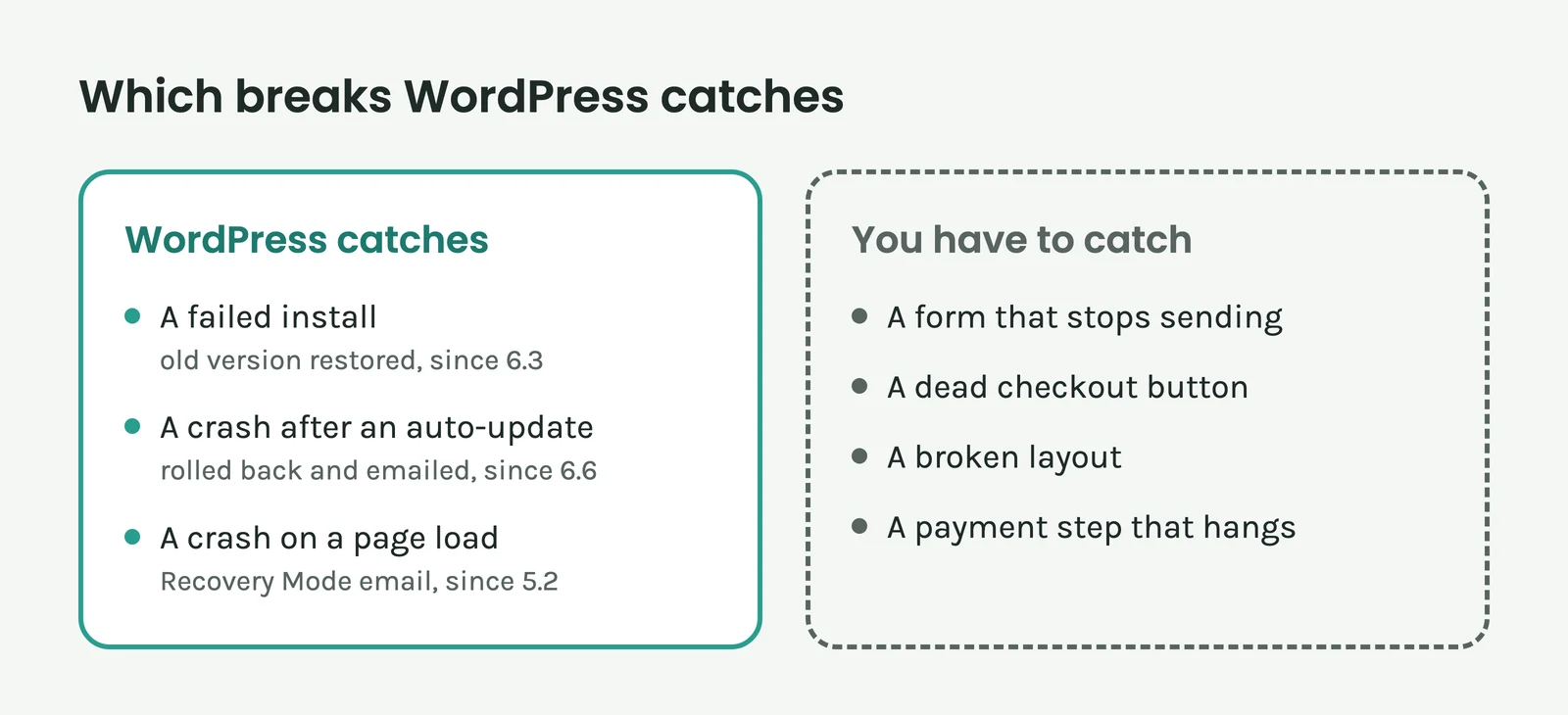
A crash is the easier one, because the site tells you. You’ll usually see “There has been a critical error on this website”. Check the admin email inbox, spam folder included, for a link that logs you in to Recovery Mode. There, the faulty plugin is paused for your session only, so you can deactivate it from the Plugins screen without visitors being involved. WordPress’s docs warn that the email might never arrive. If it doesn’t, open your host’s file manager, go to wp-content/plugins and rename that plugin’s folder (hello-dolly to hello-dolly-1, in their example), which deactivates it. Or ask your host’s support team.
A site that looks fine while something doesn’t work gives you no warning at all. Deactivate the plugin you just updated and test again. Does it need to stay active? Plugin pages on WordPress.org have an Advanced View link with a Previous Versions list, though WordPress.org warns that old versions “may not be secure or stable”, so treat one as a stopgap until a fix ships. Your other way out is the backup, remembering that a restore also wipes any orders or form entries that came in after it was taken.
A real-world example: a nursery’s seven updates
Say you run a plant nursery in Coimbatore with a small online shop, and seven updates are waiting. The changelogs show that one, your form plugin, fixes a security hole. So that goes first, today, after a backup. You send yourself a test enquiry, and it lands.
Four are small: an image optimiser, a cookie notice and two others. You do them one by one that evening, with a quick look at the site after each.
Now WooCommerce and your payment plugin. Those wait for staging, because a mistake here costs real orders. On staging you run a test order and the payment step hangs. The site looks perfect, no critical error appears, and WordPress has no idea anything is wrong. You’ve just found the break that the safety nets miss, on a copy your customers will never see. So the live shop stays on the old versions until the payment plugin’s developer ships a fix, and you check again next week.
Why it matters for your site
Patchstack counted 11,334 new WordPress vulnerabilities in 2025, and 91% of them were in plugins. Each plugin you keep is one more thing to update, so deleting the ones you don’t use is the cheapest security work there is.
Updating won’t save you every time, either. The same report found that 46% of vulnerabilities didn’t get a fix from the developer in time for public disclosure. A plugin that hasn’t been touched in a long while deserves a harder look, and WordPress’s guide notes that one not updated since the latest WordPress release may be incompatible.
What about automatic updates? They’ve been there since WordPress 5.5, one “Enable auto-updates” link per plugin. Since 6.6, released in July 2024, a plugin auto-update that causes a fatal PHP error gets rolled back to the old version and you’re emailed about it. The 2024 proposal for that feature describes the check as a request to your homepage. So a broken form can slip straight past it, and so can a crash that only hits an inner page.
Our view: switch auto-updates on for small plugins where a failure would be easy to spot and cheap to fix. Leave them off for your shop, payments and page builder, and update those by hand, promptly. If you’d rather not run this routine yourself, it’s the bulk of what a good care plan does, ours included.
The quick takeaway
- Back up, then update one plugin at a time, security fixes first.
- WordPress has tools for crashes. Silent breaks are yours to find, so test your form and checkout after updating.
- Anything that touches money goes through staging first.
Your turn
Open Plugins and click Update Available. For each plugin listed, write one line: what would a customer notice if this stopped working? If you can’t finish a line, that plugin needs a closer look, and you may not need it at all.
Sources and further reading
- State of WordPress Security in 2026, Patchstack
- Manage Plugins, WordPress.org Documentation
- Recovery Mode, WordPress.org Documentation
- How to update WooCommerce, WooCommerce Documentation
- New in 6.3: Rollback for failed manual plugin and theme updates, Make WordPress Core
- Merge Proposal: Rollback Auto-Update, Make WordPress Core
- Version 6.6, WordPress.org Documentation
- Contact Form 7, Advanced View, WordPress.org Plugin Directory
Image credits: Annotated screenshots of a WordPress 7.1.4 demo install in WordPress Playground, made for iZenesis. Images marked as AI-generated were created with AI (Claude) for iZenesis.