How would you find out that your website was down? For most small businesses the honest answer is a customer, usually by phone and usually a day late. A free monitoring service can tell you within minutes instead, and setting one up takes about a quarter of an hour.
Introduction
An uptime monitor is a service that visits your website on a schedule, every few minutes, and sends you an alert when it can’t load the page. It doesn’t fix anything. What it changes is who notices first, and how long the problem runs before someone does.
This tutorial uses UptimeRobot, because its free plan is generous and, as of this month, allowed for business use. We checked the plan details and the steps below against UptimeRobot’s own pricing page and help centre on 8 November 2026. Screens change, so if a button has moved, the help article for each step is in the sources at the end.
What it actually means: setting it up, step by step
1. Decide what to watch
Pick two things: your homepage, and the one page that earns you money. For most businesses that’s the contact, booking or checkout page. Then pick a short phrase that always appears on that page and nowhere in an error message, such as “Book an appointment” or your phone number. You’ll use it in step 4.
2. Create a free account
UptimeRobot’s pricing page lists the free plan at 50 monitors with checks every 5 minutes, and describes it as “good for personal and commercial projects”. Its terms say the service “is available for any use, including commercial and business use”. No card is needed.
3. Add a monitor for your homepage
UptimeRobot’s help article on creating your first monitor gives the steps:
- Click “+ Add New Monitor”.
- Choose the HTTP(s) type and paste your homepage address. The friendly name fills itself in, and you can edit it.
- Choose who gets notified. Your sign-up email is usually already set up as a contact.
- Leave the interval at what the free plan offers, then click “Create monitor”.
From now on the service asks your server for that page every 5 minutes, and raises the alarm if it doesn’t get a proper answer.
4. Add a keyword monitor for the page that matters
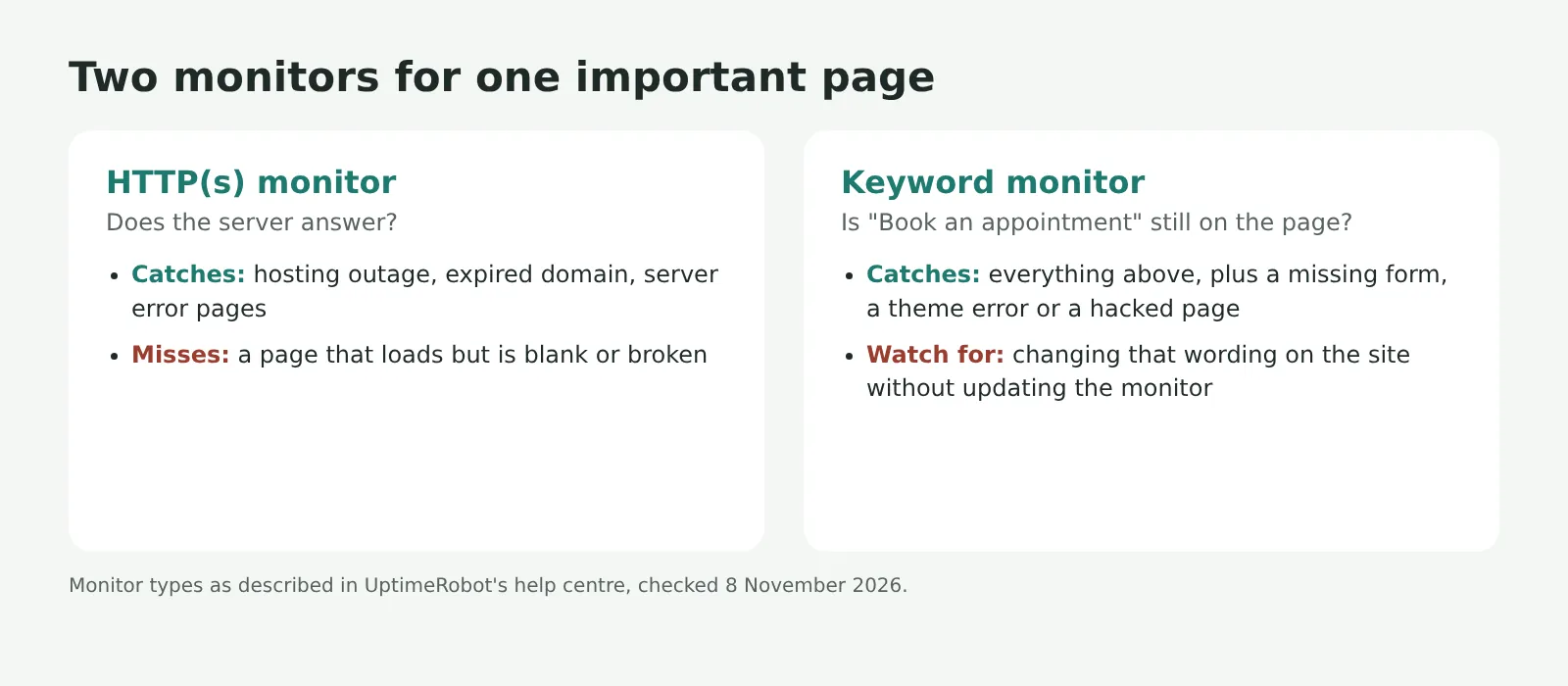
An ordinary monitor only checks that the server answers. A page can load perfectly well and still be wrong: blank, missing its form, or showing a plugin error. UptimeRobot’s keyword monitor checks “the existence or non-existence of a keyword on a web page”, according to its help centre.
Add a second monitor, choose the Keyword type, enter your booking or contact page, and type the phrase from step 1 with the condition “keyword exists”. If the phrase disappears, you get an alert.
5. Make sure the alerts reach a person
UptimeRobot’s help centre notes that a contact only gets alerts for the monitors it’s assigned to, so check both monitors list your contact. Add a second person if you can, such as a colleague or your developer. One inbox that nobody reads on Sundays is a weak link.
If you’d like alerts on your phone, the help centre describes installing UptimeRobot’s app and logging in with your username. Check what your plan includes before relying on it. The pricing page says SMS and voice calls aren’t included in the free plan, though they can be added.
6. Test it
Don’t wait for a real outage to find out whether alerts work. Add a temporary keyword monitor on your homepage for a phrase that isn’t there, such as “test123”, with the condition “keyword exists”. Within a few minutes it should report the page as down and send you an alert. Once it does, delete the test monitor.
Other free options
- HetrixTools’ pricing page lists 15 free monitors checked every minute, with alerts by email and other channels, as long as you log in at least once every 90 days.
- Better Stack’s free tier offers 10 monitors with checks every 3 minutes, but it’s labelled “Free for personal projects”.
- If you used Freshping, Freshworks said in February 2025 that it was discontinuing the service, so it’s time to move.
A real-world example: a physiotherapy clinic
Say you run a physiotherapy clinic in Chandigarh, and most new patients book through a form on your website. You set up two monitors: one on the homepage, one keyword monitor on the booking page watching for “Book an appointment”.
A few weeks later a plugin update breaks the booking page. It still loads, but the form has vanished and the page shows an error where it used to be. The homepage monitor stays green, because the server is answering. The keyword monitor goes red within minutes, because the phrase has gone. You get an email over breakfast, roll the plugin back, and you’ve lost an hour of bookings rather than a weekend’s.
Why it matters for your site
Hosting companies watch their servers, not your pages. Your host may never know that your contact form disappeared, and your visitors won’t tell you. They’ll just book somewhere else.
A monitor also gives you a record. When something does go wrong, you can see exactly when it started and how long it lasted, which helps when you’re talking to your host or your developer about what happened.
Five-minute checks are enough for most small businesses. If every minute offline costs you real money, a paid plan with faster checks is worth considering. UptimeRobot’s cheapest paid plan offers 60-second checks, for example. If your site is on a care plan, ask whether monitoring is already included.
The quick takeaway
- A free monitor, such as UptimeRobot’s (50 monitors, checks every 5 minutes, business use allowed), tells you about an outage before your customers do.
- Use a keyword monitor on the page that earns you money, because pages can load and still be broken.
- Test the alert once, and send it to more than one person.
Your turn
Pick the one page on your site you’d least like to see broken, and the phrase that proves it’s working. That’s your first monitor.
Sources and further reading
- Pricing, UptimeRobot
- Terms of Service, UptimeRobot
- Who is UptimeRobot's free plan for?, UptimeRobot Help Center
- How to create your first monitor, UptimeRobot Help Center
- Monitor types explained, UptimeRobot Help Center
- Personal notification channels, UptimeRobot Help Center
- Understanding notification channels, UptimeRobot Help Center
- Uptime monitor pricing, HetrixTools
- Pricing, Better Stack
- Check frequency, Better Stack docs
- Freshping discontinuation, Freshworks Community (18 February 2025)
Image credits: Banner photo by Taylor Vick on Unsplash. Images marked as AI-generated were created with AI (Claude) for iZenesis.