On Monday your contact form says “Thank you, we’ll be in touch.” On Friday the same person rings to ask why nobody was. Nothing looked broken in between. The form submitted, the thank-you message appeared, and the email simply never reached you.
Introduction
This is one of the most common problems we see on small WordPress sites, and one of the most expensive, because every lost message is a customer who tried to reach you. The good news is that the fix is well understood. In most cases it takes an hour, costs nothing, and stays fixed.
This tutorial explains why WordPress email goes missing and walks you through the fix: sending your site’s mail through a proper mail service (SMTP) and proving that it arrives. We checked the details against WordPress’s developer documentation, Google’s sender guidelines and the wordpress.org pages for two SMTP plugins on 11 November 2026: WP Mail SMTP (version 4.10.3) and FluentSMTP (version 2.4.5). Plugin screens change, so we describe what each step does rather than which button to press.
What it actually means: fixing your form’s email, step by step
Why the email goes missing
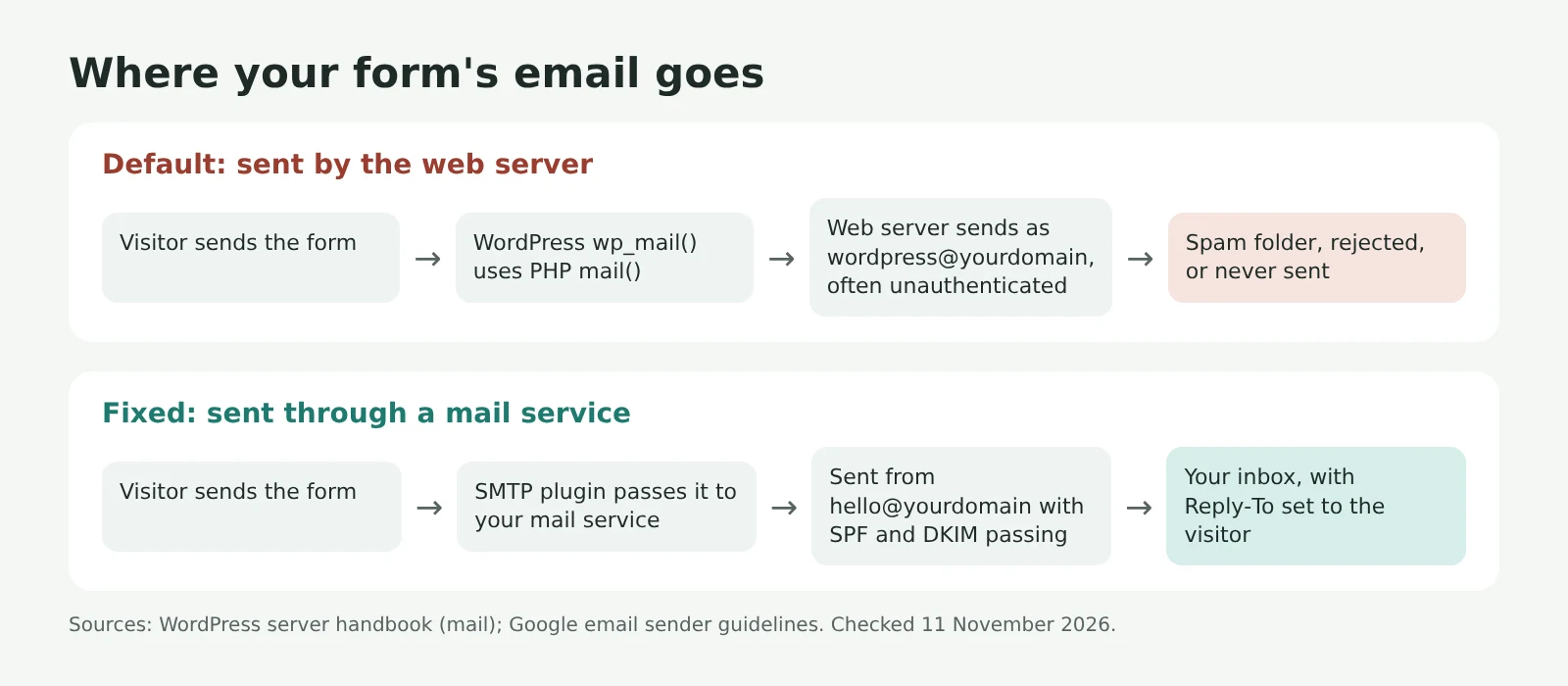
When a form plugin sends you an enquiry, it hands the message to WordPress’s wp_mail() function. According to WordPress’s own server handbook (updated 14 October 2026), by default that function uses PHP’s built-in mail() function, which relies on the web server itself to send the message. If the server isn’t set up to send mail, the message goes nowhere.
Even when the server does send it, the message often looks suspicious to the receiving inbox. It comes from a web server rather than a mail server, usually from an address like wordpress@yourdomain.com, and often without the authentication records that services such as Gmail now check for. Since 1 February 2024, Google’s email sender guidelines have required everyone sending to Gmail accounts to authenticate with SPF or DKIM. Mail that fails those checks may land in spam or be rejected outright.
There’s one more trap. The wp_mail() reference page notes that a “true” result only means the message was handed over, not that anyone received it. That’s why your form can cheerfully say “sent” while your inbox stays empty.
1. Test it properly first
Submit your own form using a personal address that isn’t on your business domain. Then check the inbox where enquiries should arrive, including the spam and promotions folders. Wait ten minutes before deciding. If your form plugin keeps a copy of entries in the WordPress dashboard, check there too, because it tells you whether the form worked even if the email didn’t.
2. Fix the From address
Open your form’s email settings. The “From” address should be an address on your own website’s domain, such as hello@yourbusiness.com. Contact Form 7’s setup guide says the same, and shows an error if the address belongs to a different domain.
A common mistake is putting the visitor’s email address in the From field so you can hit reply. That makes your website look as if it’s pretending to be Gmail or Outlook, which is exactly what spam filters look for. Put the visitor’s address in a Reply-To header instead. You still reply with one click, and the message passes the filters.
3. Choose where your mail will be sent from
You need a real mail service to send through. There are three sensible choices:
- Your business email provider, such as Google Workspace or Microsoft 365, if you already pay for one.
- Your web host’s email, if your domain’s mailboxes live with your host. Hosts publish SMTP settings (server, port, username) in their help pages.
- A transactional email service, such as Brevo, Postmark or SMTP2GO. These are built for automated messages like form notifications and order emails. Many have free tiers that cover a small business’s form traffic, but check the current limits on their own pricing pages before you sign up.
If you use a personal Gmail account, be careful. Google’s help page on app passwords says they “aren’t recommended” and work only with 2-Step Verification turned on, and Google revokes them whenever you change the account password. Choose a plugin option that signs in with Google directly instead.
4. Install one SMTP plugin
An SMTP plugin changes wp_mail() so that it sends through the service you picked rather than through the web server. Two well-supported options on wordpress.org, as of 11 November 2026:
- WP Mail SMTP reports more than 4 million installations. Its free version supports Gmail, Brevo, Mailgun, Postmark, SendGrid, SMTP2GO and “Other SMTP”, among others. Email logging is a paid feature.
- FluentSMTP describes itself as free and open source with no pro version. It supports Gmail and Google Workspace, Microsoft 365, Amazon SES, Brevo, Postmark and any SMTP server, and it keeps a log of every email your site sends.
Install one, not both. Two plugins that each try to change how mail is sent will fight each other. Then enter the details from step 3 in the plugin’s settings.
5. Add SPF and DKIM records for your domain
These are small text records in your domain’s DNS that tell inboxes “this service is allowed to send mail for this domain”. Your mail service shows you exactly what to add, and you add it wherever your domain’s DNS is managed, usually your registrar or your host.
Google’s rules require SPF or DKIM for all senders. Google requires DMARC as well only for senders of 5,000 or more messages a day, but we set up all three for every client, because it’s a ten-minute job and it protects your domain from people faking your address.
6. Send a test and read the result
Both plugins have a test email screen. Send a test to a Gmail address and open it. In Gmail, the “Show original” option on the message menu lists SPF, DKIM and DMARC results. You want to see PASS. Then go back to step 1 and submit your real form again.
7. Keep an eye on it
Turn on logging if your plugin offers it, and check it after any big change, such as a new theme, a new form plugin or a move to a new host. A monthly test submission takes a minute and catches problems before customers do.
A real-world example: a driving school’s missing bookings
Take a driving school in Kochi with a simple WordPress site and a Contact Form 7 booking form. Lessons are booked by phone and by the form, and one month the form goes quiet. The owner assumes it’s the season.
The test in step 1 shows the problem quickly: the form says “sent”, and nothing arrives, not even in spam. The From field is set to the visitor’s own address, and the site has been sending through the server’s mail() function since it was built.
The fix follows the steps above. The From address becomes bookings@ on the school’s own domain, with the visitor’s address in Reply-To. FluentSMTP sends through the school’s existing Google Workspace account, and the SPF and DKIM records go in at the domain registrar. The test email shows PASS on both, and the next real booking arrives within a minute.
Why it matters for your site
A contact form is often the main way a small business gets new work from its website, and a broken one fails silently. Your visitors see a thank-you message. You see nothing at all, so you can’t tell a quiet month from a broken form.
The same fix covers every other email your site sends: order confirmations from WooCommerce, password resets and booking reminders. If customers have ever told you they didn’t get a receipt, this is likely the reason. On our care plans, a monthly form test is part of the routine for exactly this reason.
The quick takeaway
- WordPress’s default email setup often fails silently, and a “sent” message on the form doesn’t prove delivery.
- Send through a real mail service with one SMTP plugin, using a From address on your own domain.
- Add SPF and DKIM for your domain, send a test, and look for PASS.
Your turn
Fill in your own contact form today, from a personal address, and time how long the email takes to arrive. If it doesn’t arrive within ten minutes, you know what to fix this week.
Sources and further reading
- Email, WordPress Advanced Administration Handbook (updated 14 October 2026)
- wp_mail(), WordPress Developer Reference
- Email sender guidelines, Gmail Help (checked 11 November 2026)
- Sign in with app passwords, Google Account Help
- Setting up mail, Contact Form 7
- WP Mail SMTP, WordPress.org plugin directory (version 4.10.3, checked 11 November 2026)
- FluentSMTP, WordPress.org plugin directory (version 2.4.5, checked 11 November 2026)
Image credits: Banner photo by Kristina Tripkovic on Unsplash. Diagrams and illustrations marked as such were created with AI (Claude) for iZenesis.